
part 01
Setting up a firm and its advisers
How a new firm signs up, gets approved, and sets itself up in a few minutes. Every screen here is from the app's own tests, with made-up firms and people.
-
01 / 11
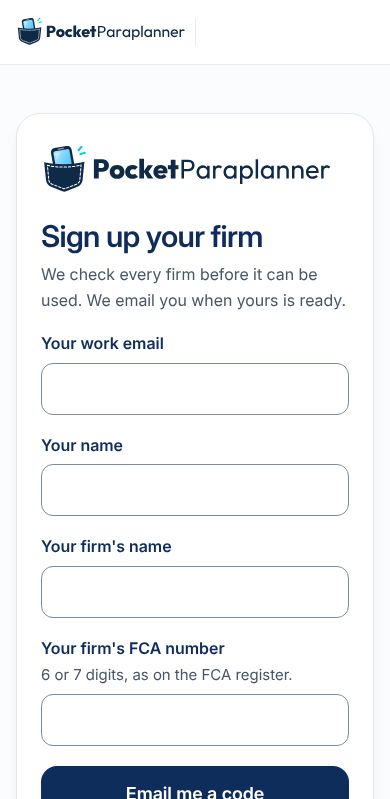
A new firm signs up
From the sign-in page, "New firm? Sign up". The founder gives their work email, name, firm name and FCA number. It works on a phone.
-
02 / 11
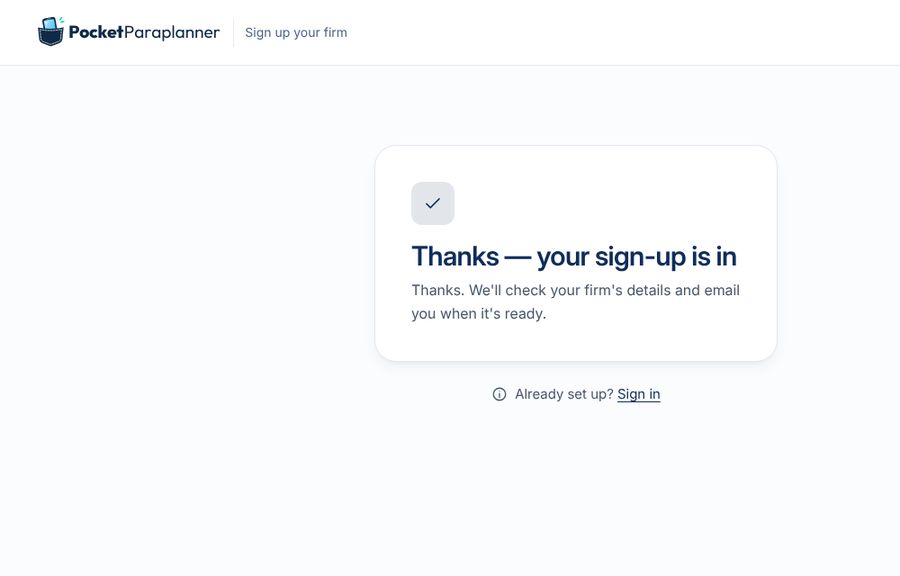
They confirm their email
A code is emailed to them. Once it's entered: "Thanks — your sign-up is in". Nobody can use the firm until it's checked.
-
03 / 11
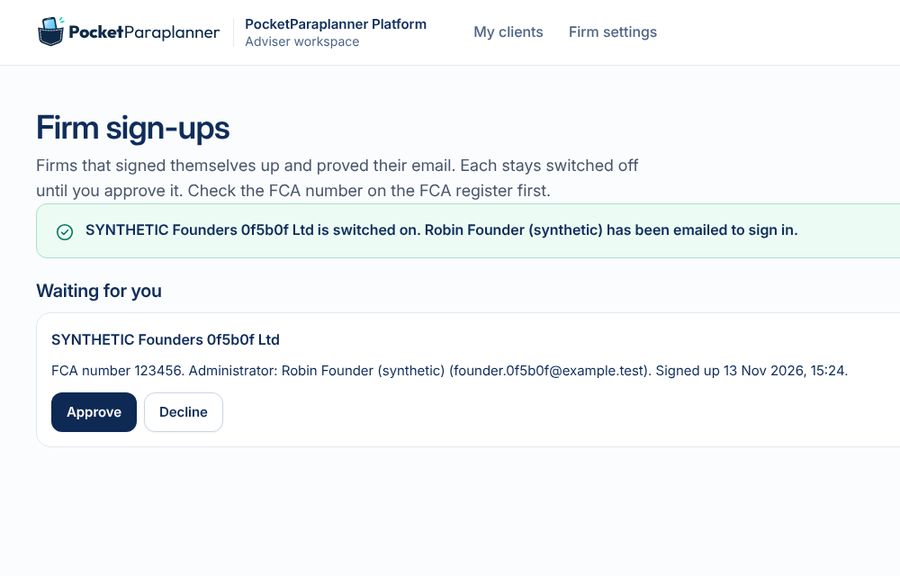
Each new firm is checked
We check each new firm's FCA number against the register before approving it. The founder is emailed either way.
-
04 / 11
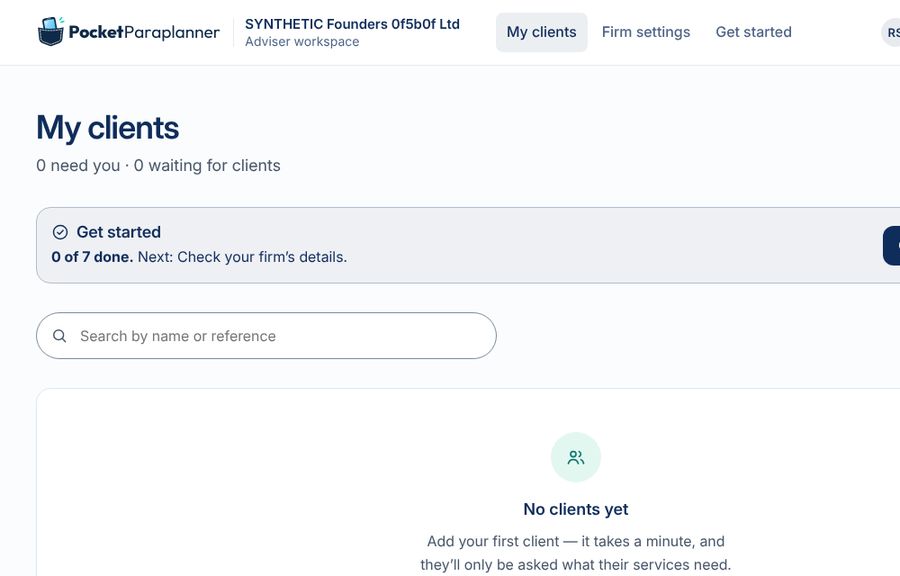
The founder signs in to their own firm
An empty client list and a Get started prompt: seven short steps to set the firm up.
-
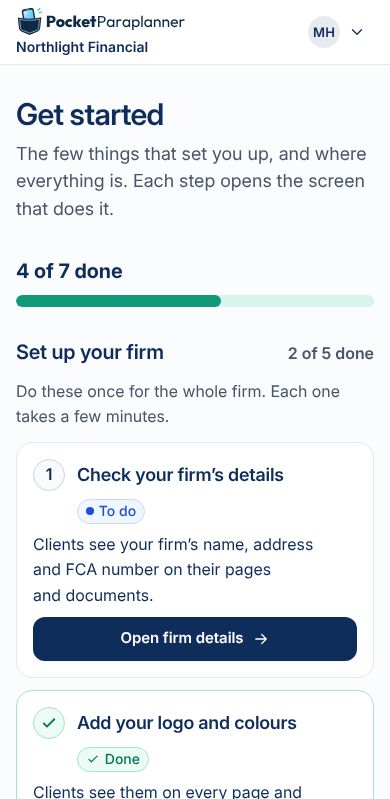
05 / 11
Get started: a short guide
Each step opens the screen that does it: firm details, logo and colours, client documents, services and more. It counts what's done.
-
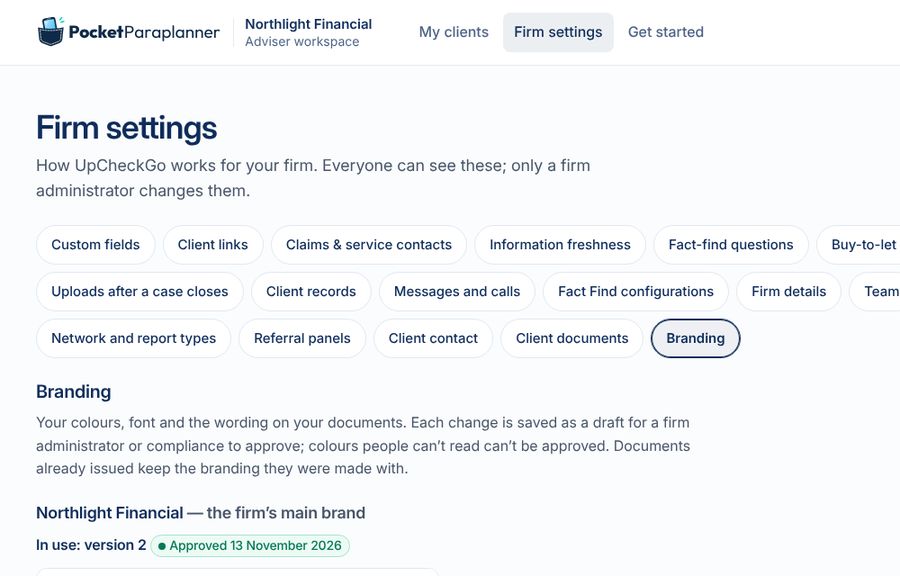
06 / 11
Logo and colours
The firm adds its logo and main colour. Colours that people would struggle to read are refused. An administrator approves them.
-
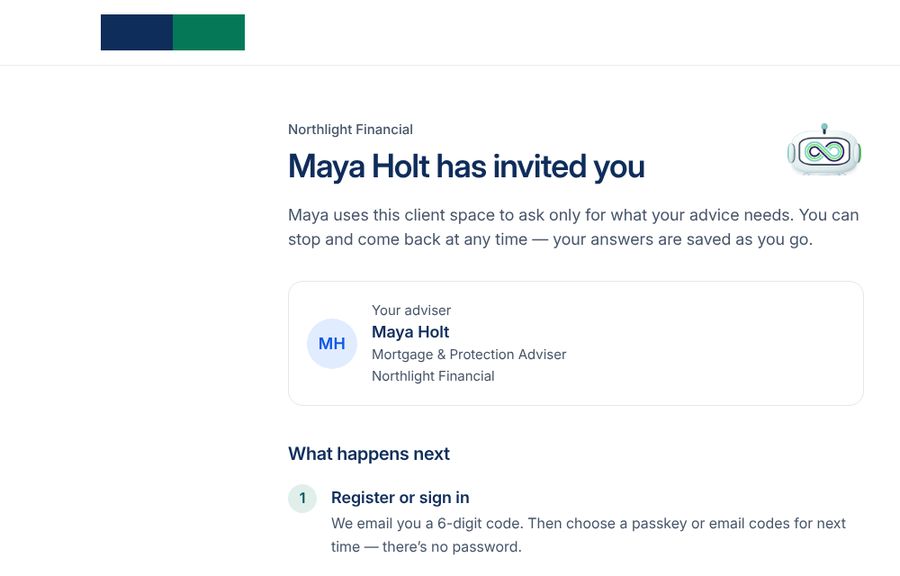
07 / 11
Clients see the firm's own brand
Invitations, the client's pages and documents carry the firm's name, logo and colours, with the platform's own name kept small.
-
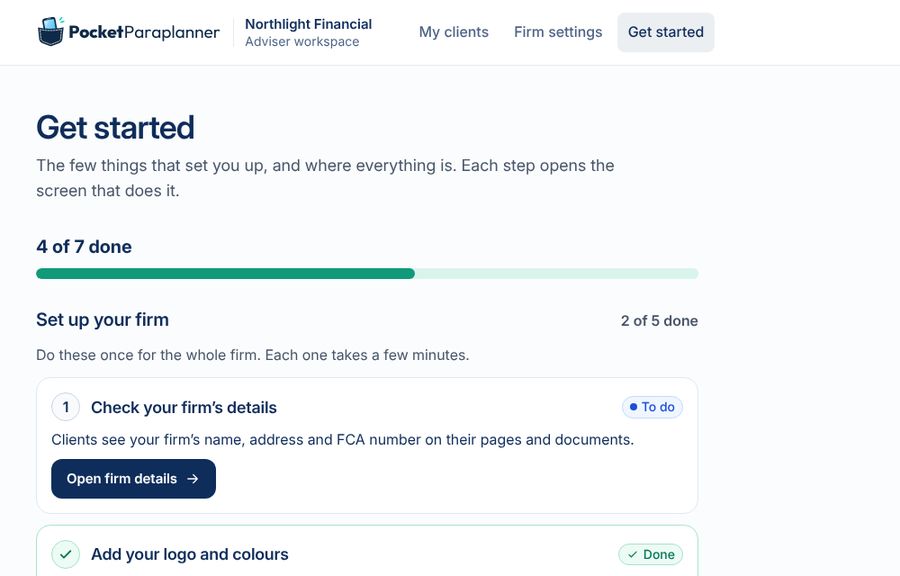
08 / 11
The firm's client documents
The privacy notice and client agreement are added and approved. Every client reads and confirms them when they first sign in.
-
09 / 11
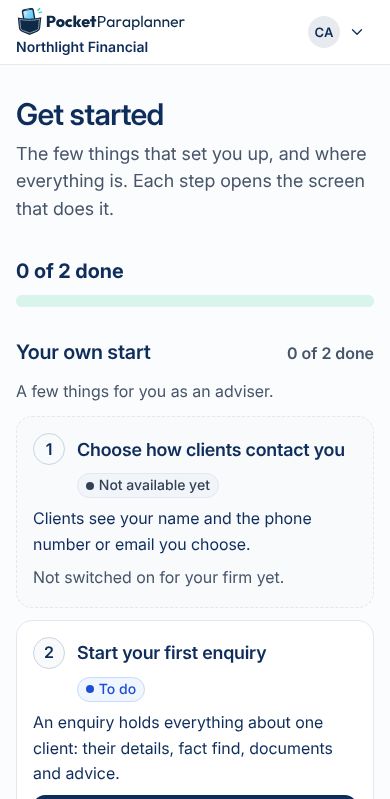
Each adviser has their own list
An adviser colleague sees their own steps, such as their first enquiry. Firm-wide steps are for the administrator.
-
10 / 11
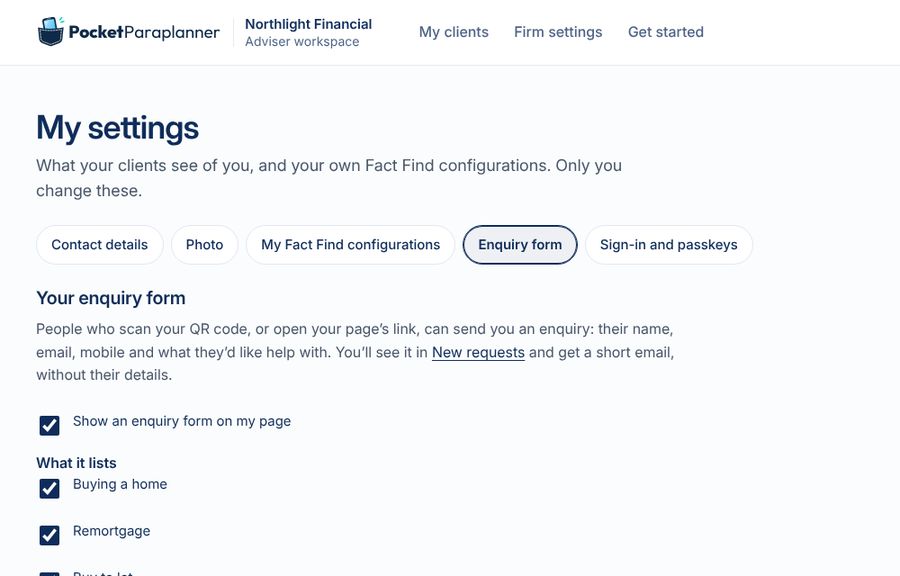
Each adviser turns on their enquiry form
Once the firm allows it, an adviser switches on the enquiry form on their own page and downloads their QR code.
-
11 / 11
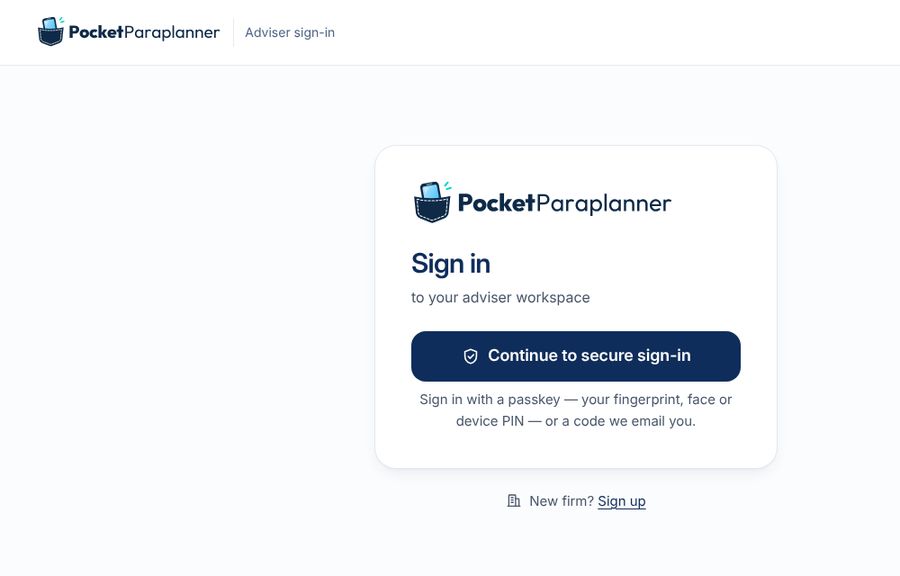
Signing in
Advisers and clients sign in through the secure sign-in service, with a passkey (face, fingerprint or screen lock) or an emailed code. No passwords.
part 02
Quick sale: from a QR code to a client
Someone scans your QR code, you send them their fact find in one tap, they answer on their phone, and you move to quotes and a report. Screens from the app's tests, with made-up people.
-
01 / 16
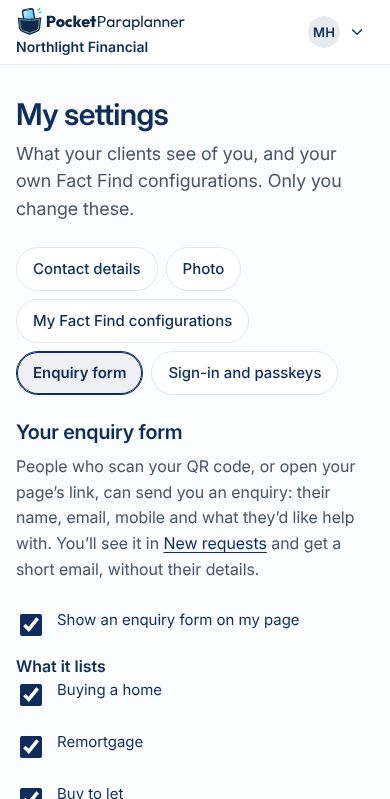
Your page, your QR code
In My settings, your enquiry form: the services you show, your page's address and QR code, and a print pack with a card, a poster and T-shirt images.
-
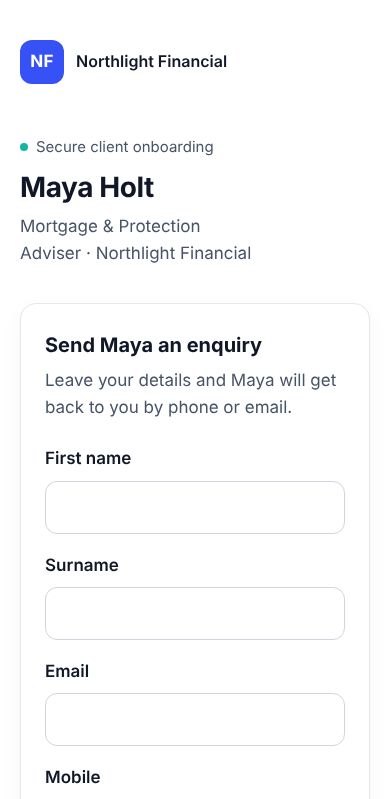
02 / 16
Someone scans it
They see your page: your name and firm, the services you offer in plain words, a box for a message, and your firm's privacy notice.
-
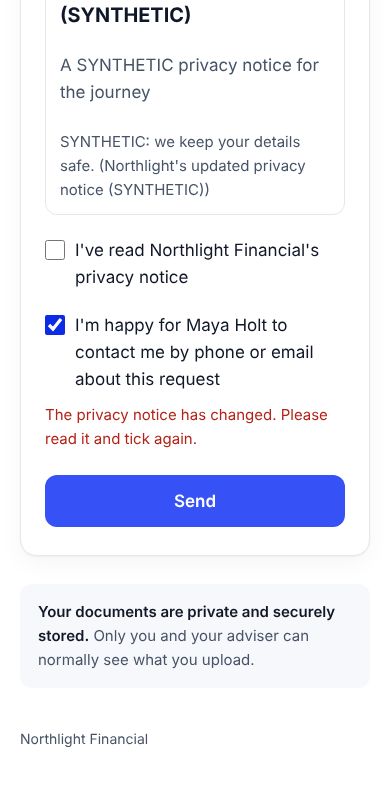
03 / 16
They agree and send
Two ticks: they've read the privacy notice, and you may contact them. If the notice changed while the page was open, they're shown the new one to tick again.
-
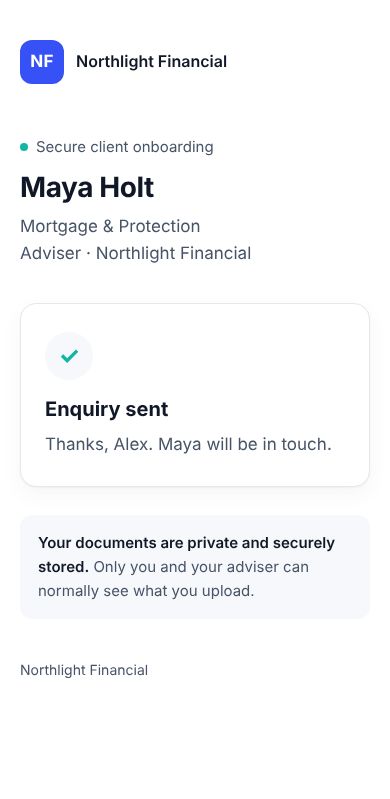
04 / 16
Enquiry sent
A thank-you with your name. Nothing is emailed to them, and nothing reaches your client records yet.
-
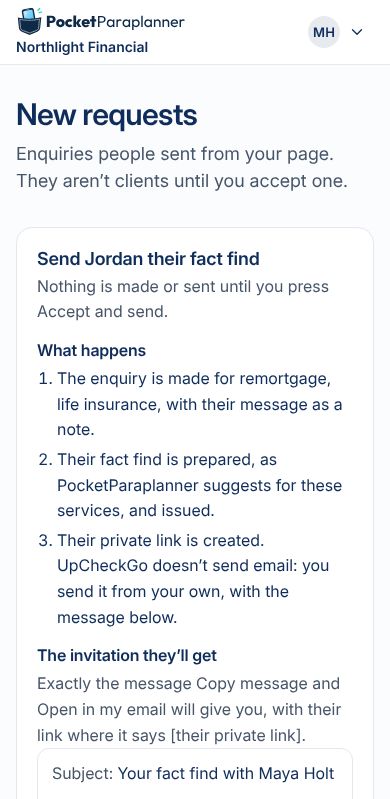
05 / 16
New requests: Accept and send
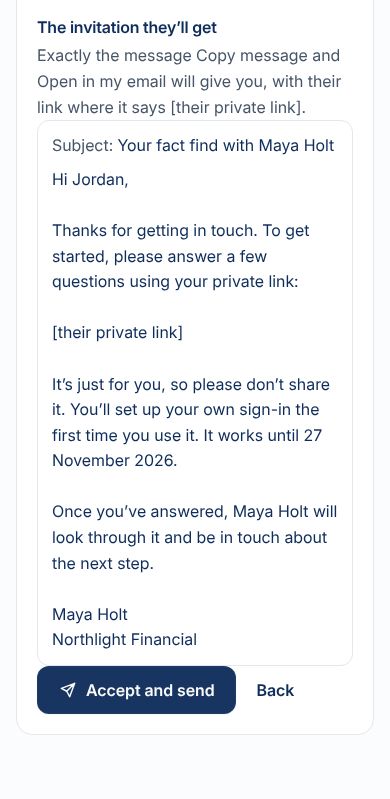
You see the request. Accept and send shows what will happen and the exact message they'll get, before anything is made.
-
06 / 16
The message, exactly as sent
Their name, their private link, when it stops working, and what happens next. PocketParaplanner doesn't send the email: you send it from your own.
-
07 / 16
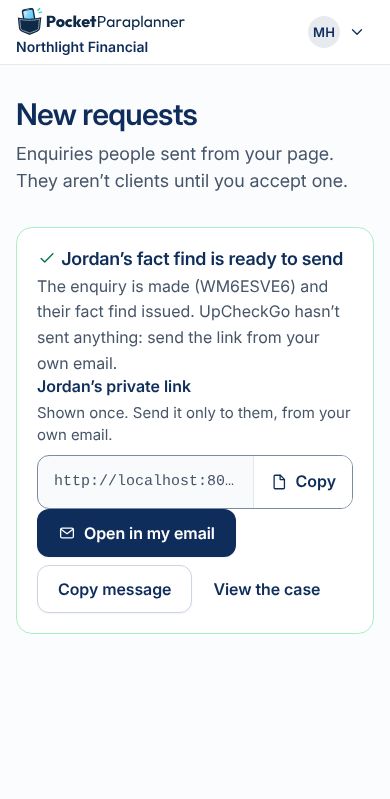
One tap: enquiry, fact find and link
The enquiry is made, their fact find is issued and their private link is ready. Open in my email, or Copy message.
-
08 / 16
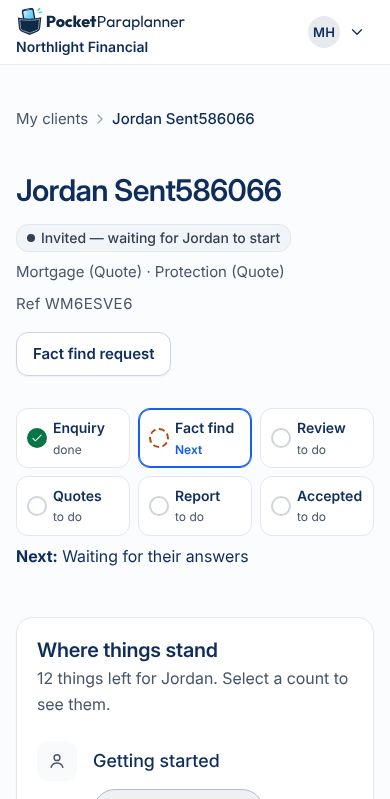
The case and its progress strip
Enquiry, fact find, review, quotes, report, accepted: each done, waiting or to do, with what's next in words.
-
09 / 16
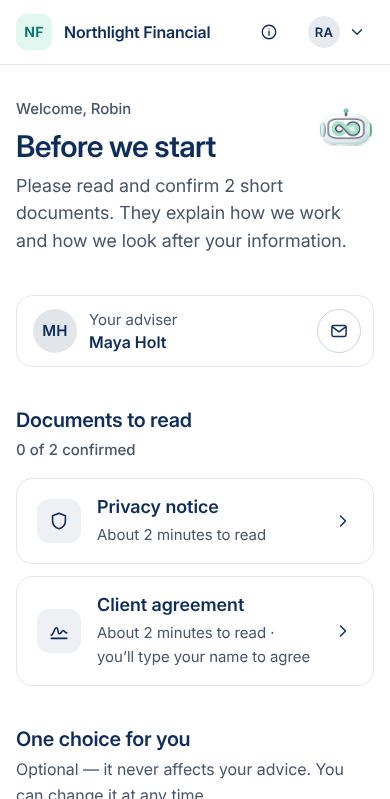
The client opens their link
They sign in with a code or a passkey, then read and confirm your firm's privacy notice and client agreement.
-
10 / 16
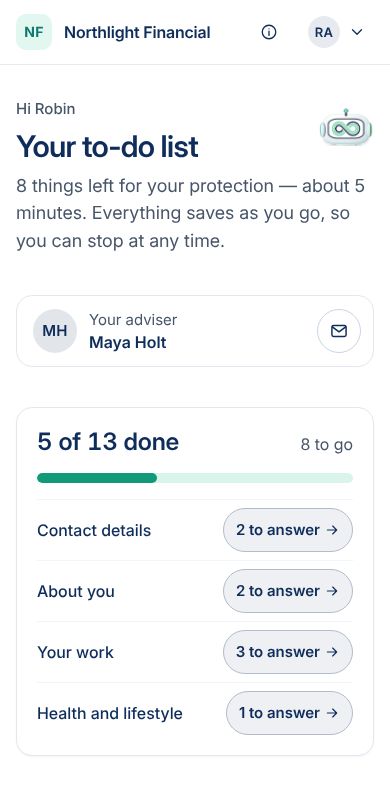
Their to-do list
Only the questions their services need, a few at a time. Everything saves as they go, and they can stop at any time.
-
11 / 16
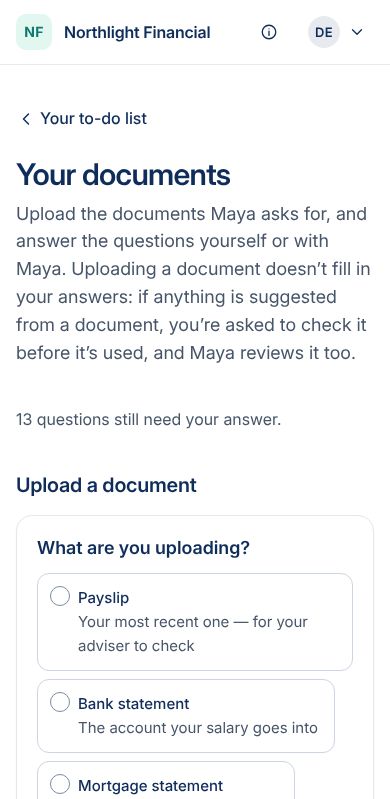
Documents, read on upload
They can upload a payslip or statement. Anything read from it is suggested for them to check; nothing is used until they confirm it and you review it.
-
12 / 16
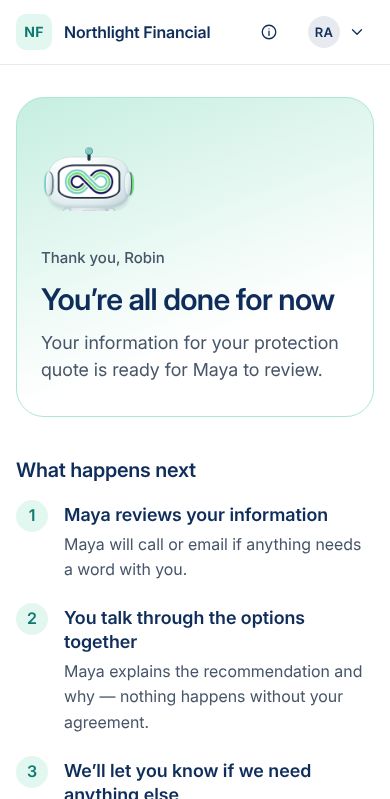
All done for now
They're told what happens next: you review their information and talk through the options together.
-
13 / 16
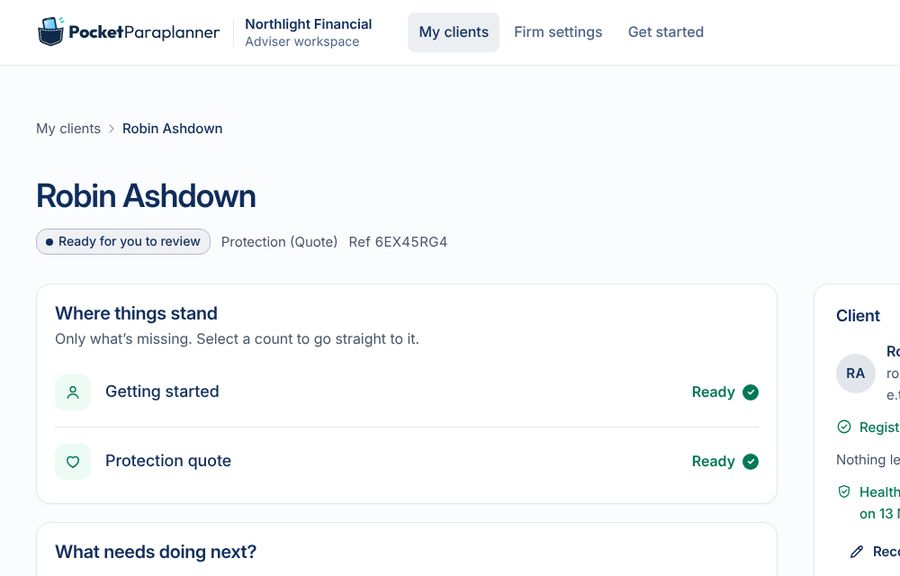
You review
Where things stand: what's ready, what's missing, and what needs doing next. Gaps go back to the client as follow-ups.
-
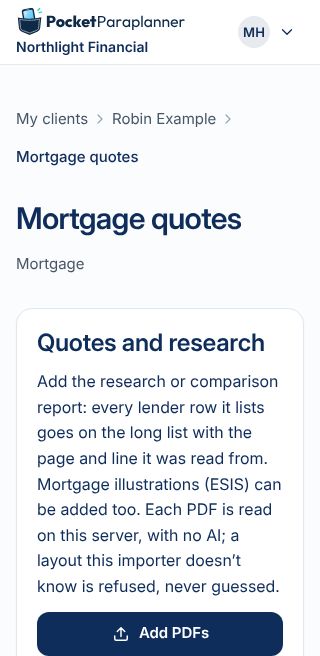
14 / 16
Quotes
Add the research or comparison report as a PDF: each line is read on our own server, with no AI. You choose the options for a Quick Quote.
-
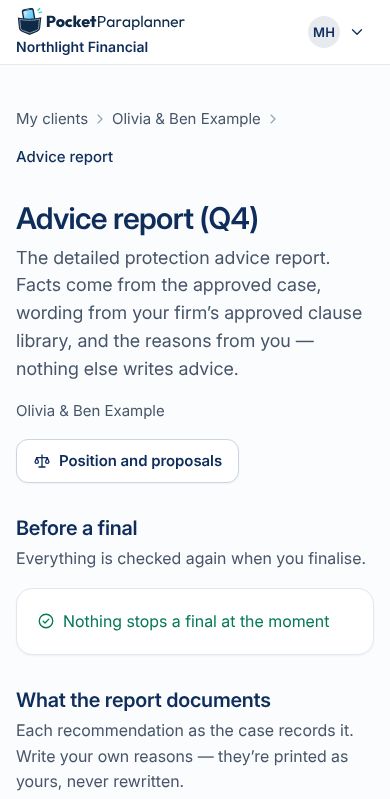
15 / 16
The advice report
Facts from the approved case, wording from your firm's approved clause library, and your own reasons. A draft first, then a final.
-
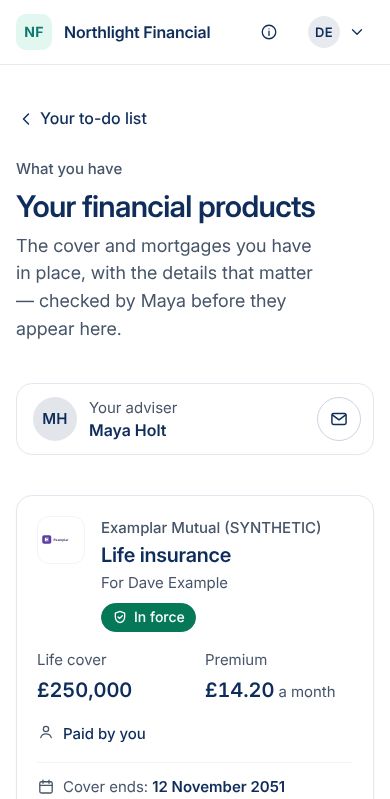
16 / 16
What the client keeps
After the sale, the client sees the cover and mortgages they have, checked by you, in their own portal.
part 03
Everything else, journey by journey
The other journeys the app is tested on, one screen each: the fact find, documents, advice and reports, after the sale, messages, other firms, and looking after data.
-
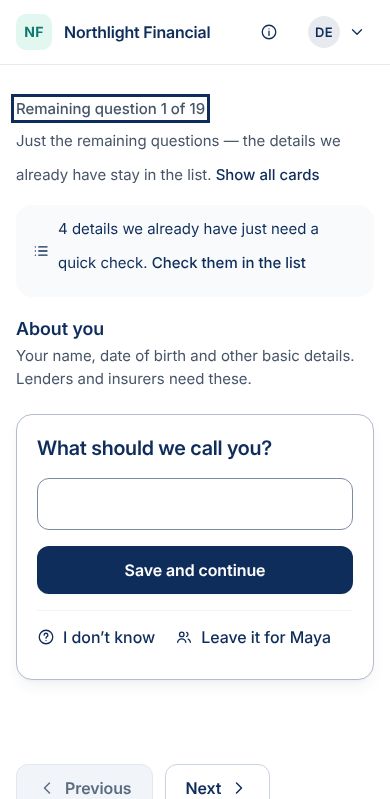
01 / 26
The fact find, one question at a time
Clients answer one question at a time, or see them all. "I don't know" and "Leave it for Maya" are always there.
-
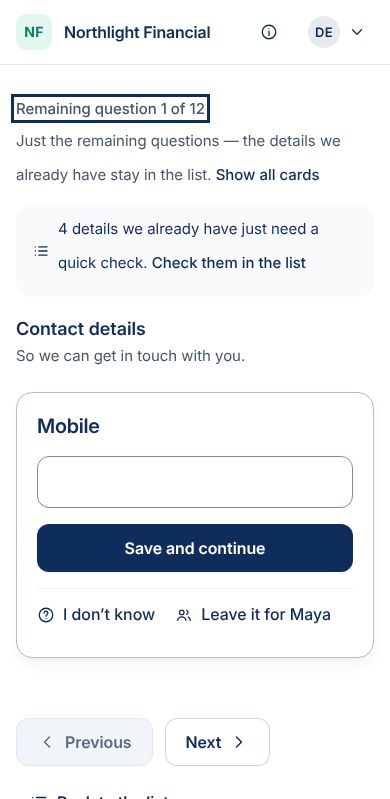
02 / 26
Only what's left
Details already given just need a quick check. Headings explain why each section is asked.
-
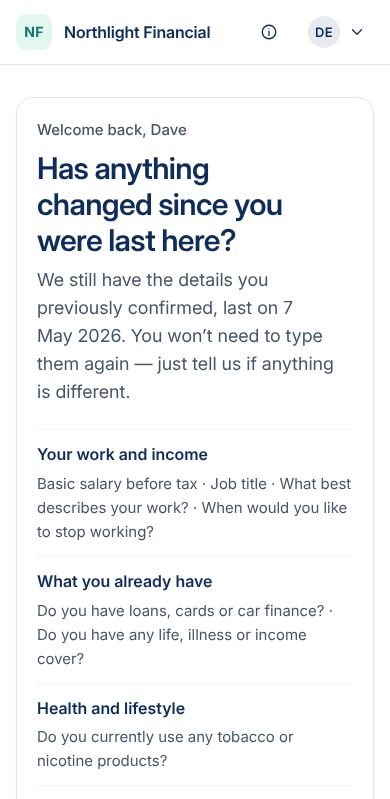
03 / 26
A returning client
"Has anything changed since you were last here?" They confirm what still holds instead of typing it again.
-
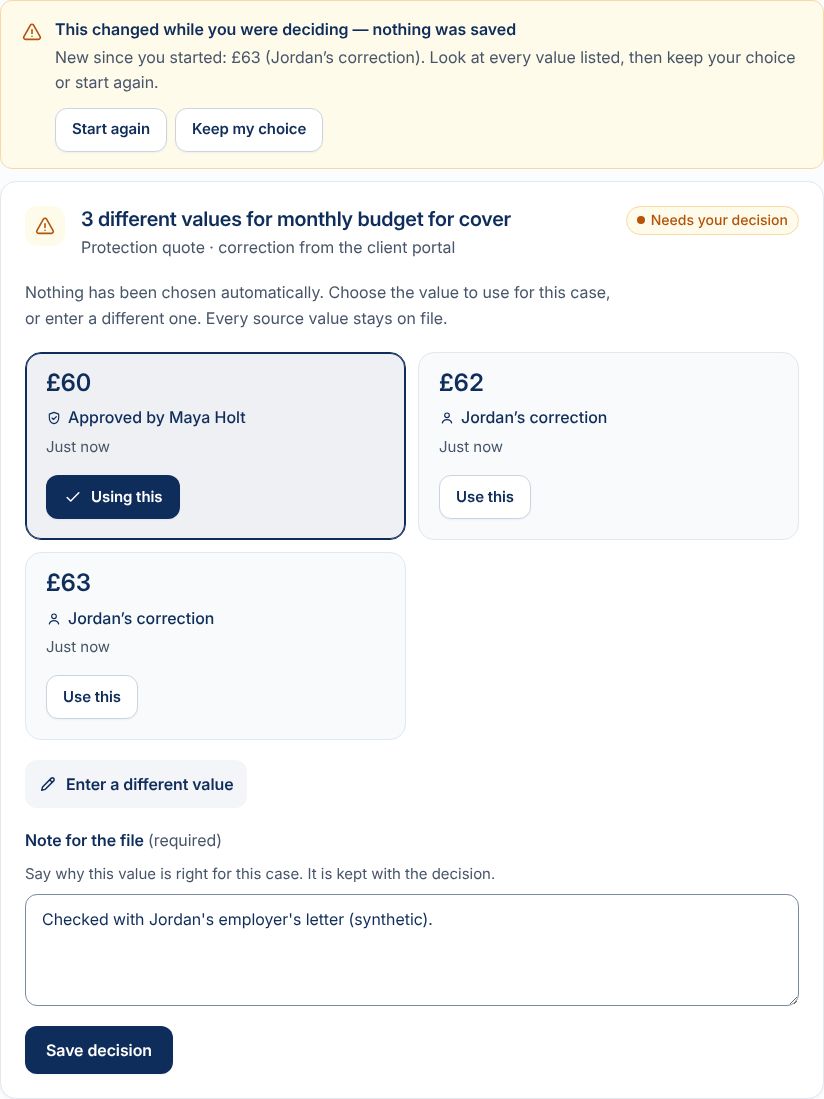
04 / 26
Different answers, one decision
When the client's answer differs from the adviser's, both are kept and the adviser chooses, with a note. A change made meanwhile is shown first.
-
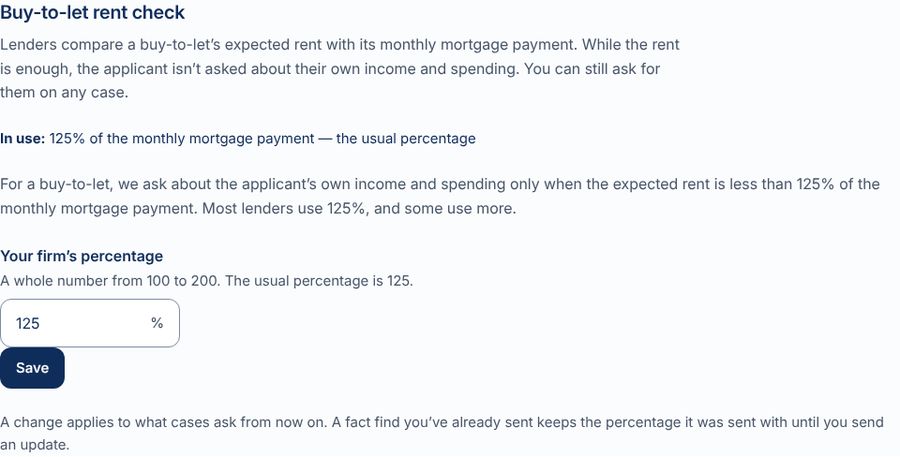
05 / 26
Firm rules: the buy-to-let rent check
The firm sets the percentage. A landlord whose rent covers the mortgage isn't asked about their own income and spending.
-
06 / 26
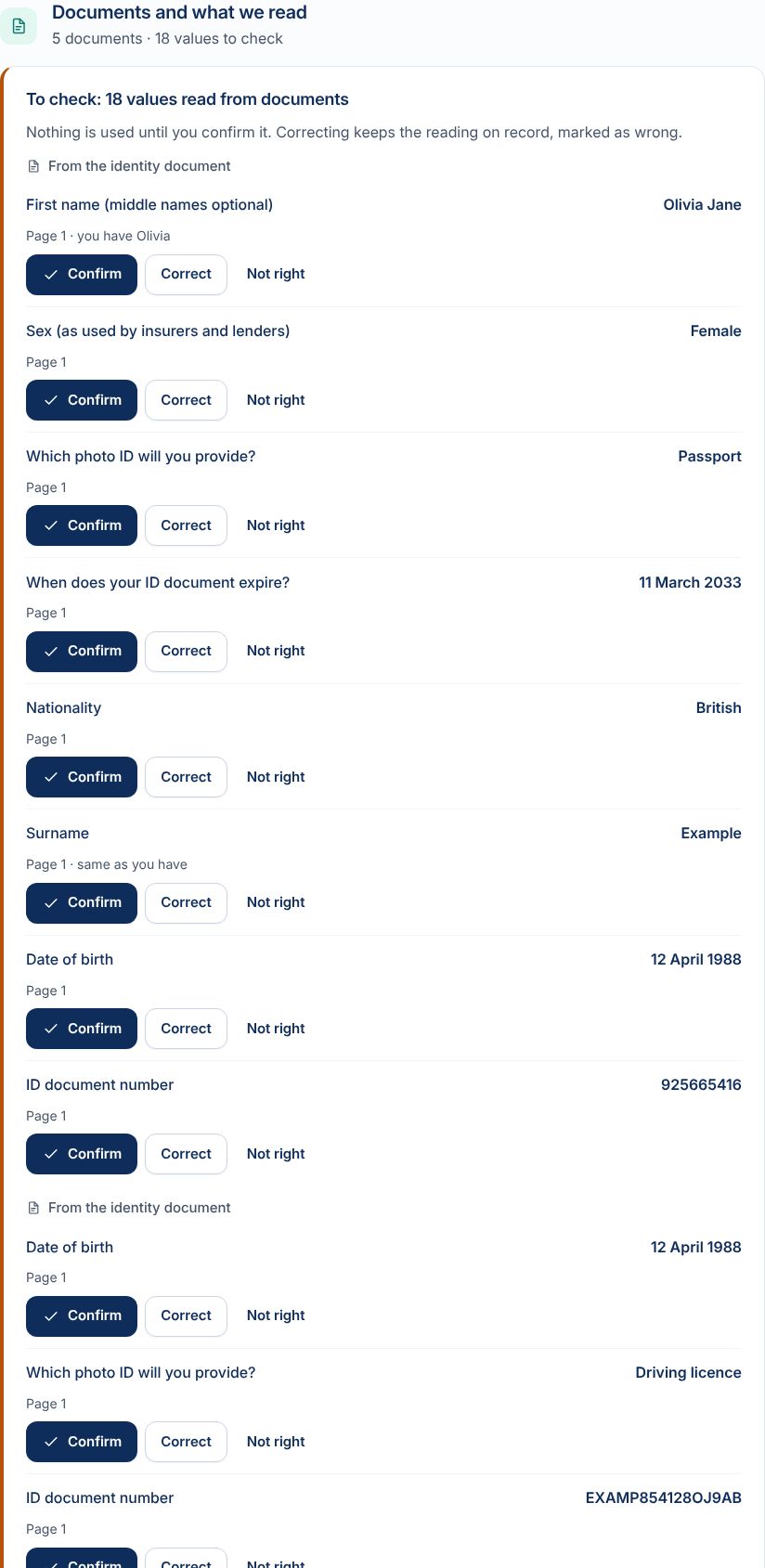
What was read from documents
The adviser sees each value read from an uploaded document and confirms or corrects it. Nothing is used unchecked.
-
07 / 26
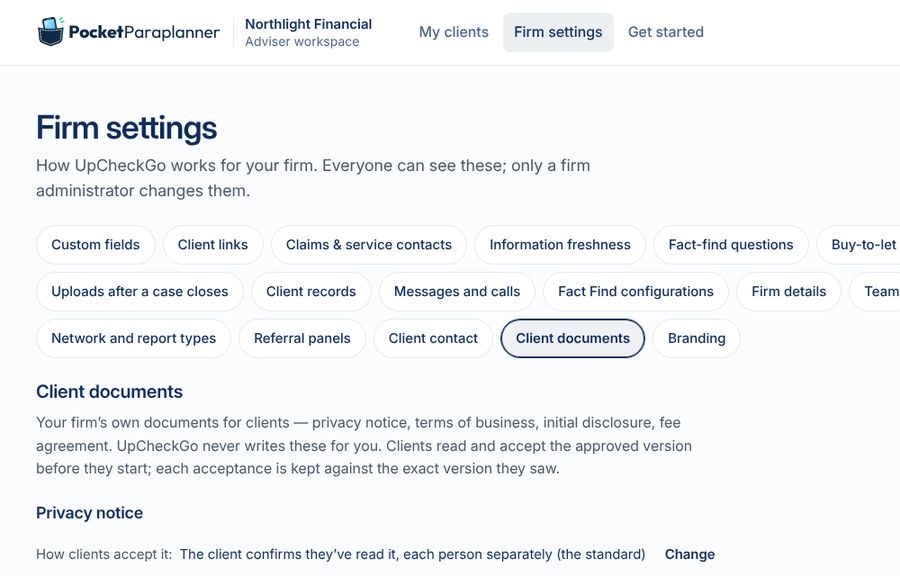
The firm's own client documents
Privacy notice, client agreement and fee agreement can be typed or uploaded as PDF or Word, checked, then approved. Clients confirm each version.
-
08 / 26
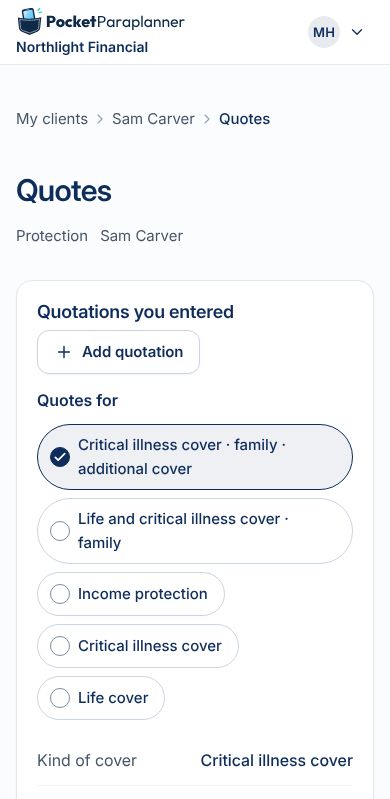
Several covers in one case
Life, critical illness and income protection quoted side by side for a family.
-
09 / 26
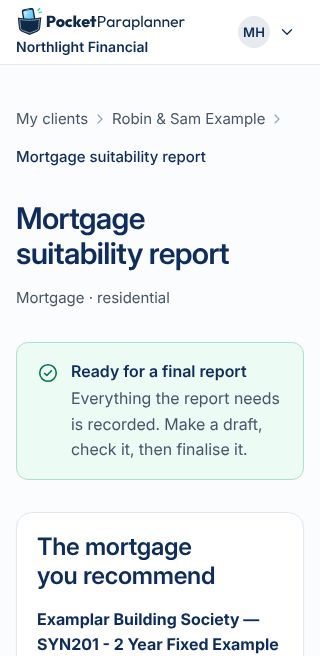
The mortgage suitability report
Ready when everything it needs is recorded. A draft to check, then a final.
-
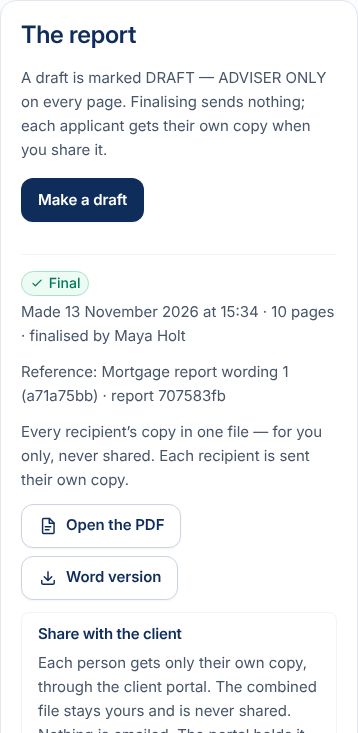
10 / 26
Sharing a report
Each person gets only their own copy, through their portal. Nothing is emailed.
-
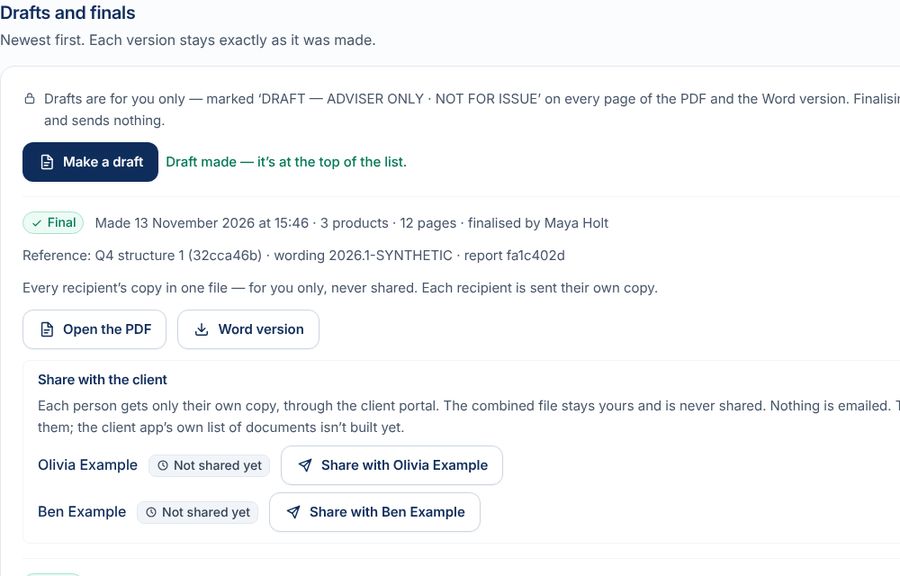
11 / 26
Drafts and finals
Every version stays exactly as it was made. Drafts are marked ADVISER ONLY on every page.
-
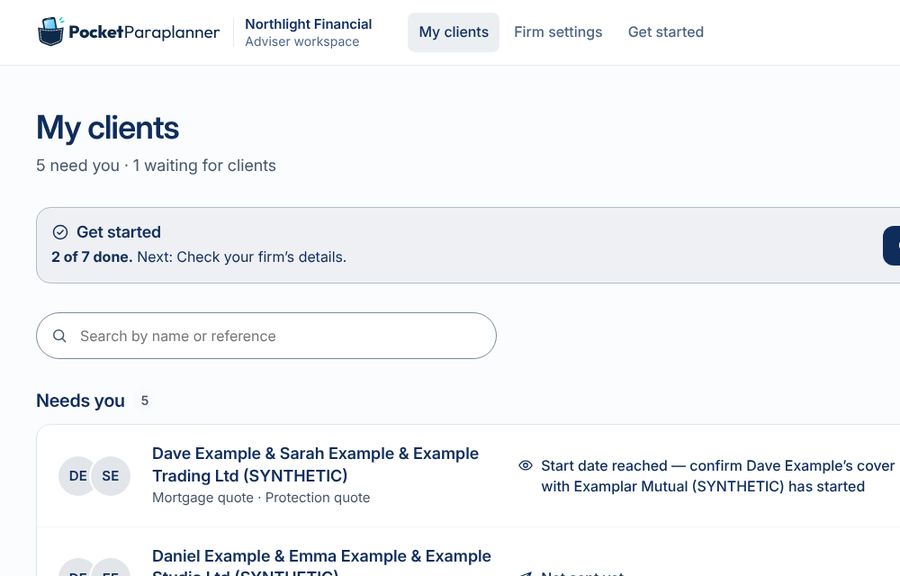
12 / 26
Letters and start dates
When cover is due to start, the adviser is reminded to confirm it with the client.
-
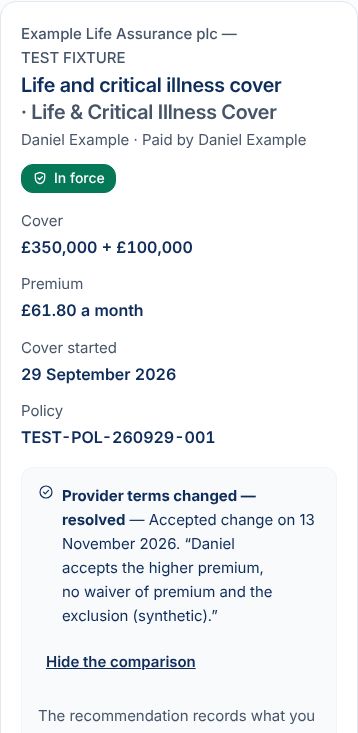
13 / 26
When the provider changes the terms
A changed premium or exclusion is compared with what was recommended and recorded with the client's choice.
-
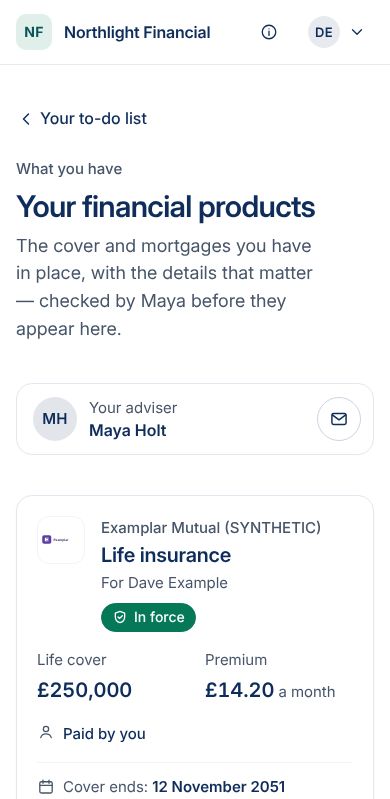
14 / 26
The client's products
Cover and mortgages in force, with the details that matter, in the client's portal.
-
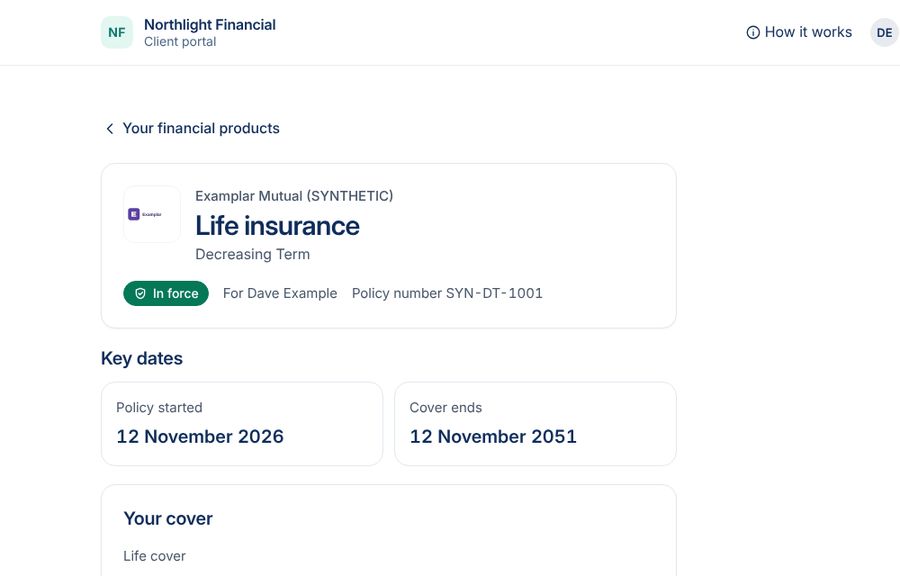
15 / 26
Documents after the sale
Policy documents reach the client in their portal. Each download is recorded as proof.
-
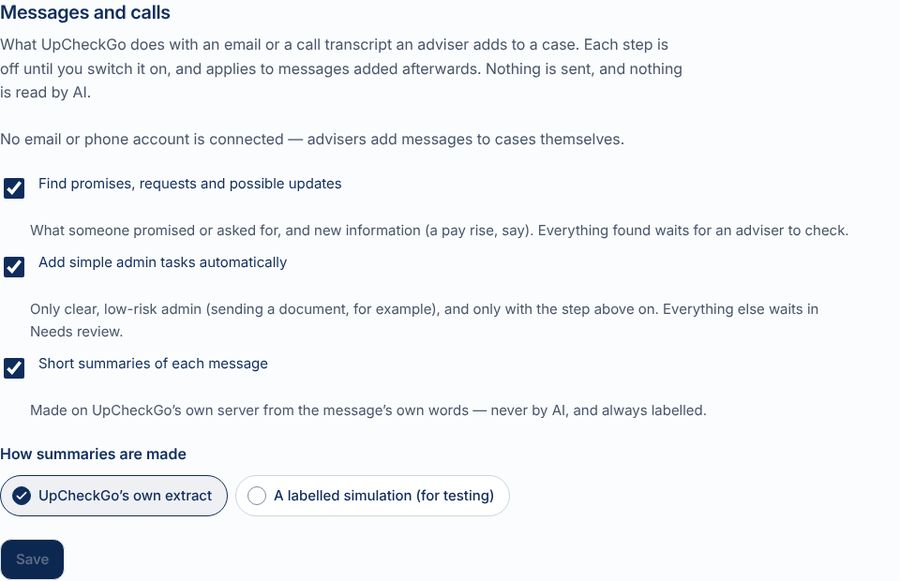
16 / 26
Messages and calls
Emails and call notes added to a case can be read for promises and updates. Each step is off until the firm switches it on, and nothing is read by AI.
-
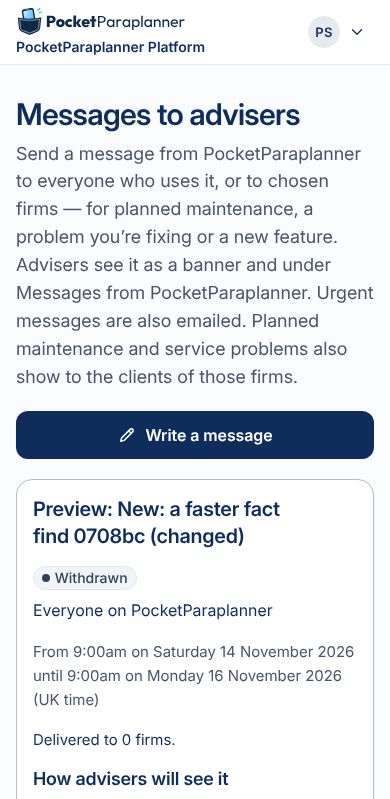
17 / 26
Messages from PocketParaplanner
Planned maintenance or a new feature, sent to every firm or chosen ones; urgent ones are emailed too.
-
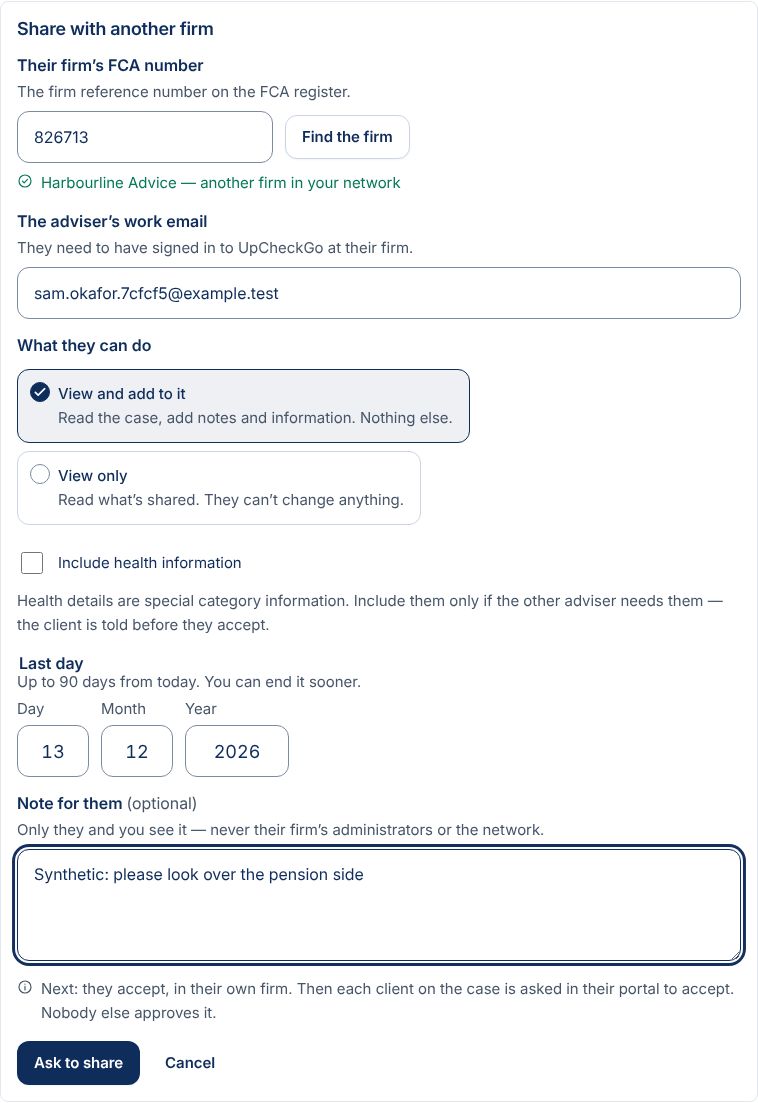
18 / 26
Sharing with another firm
A case can be shared with an adviser at another firm, view only or to add to it. The client is asked first; health details only if chosen.
-
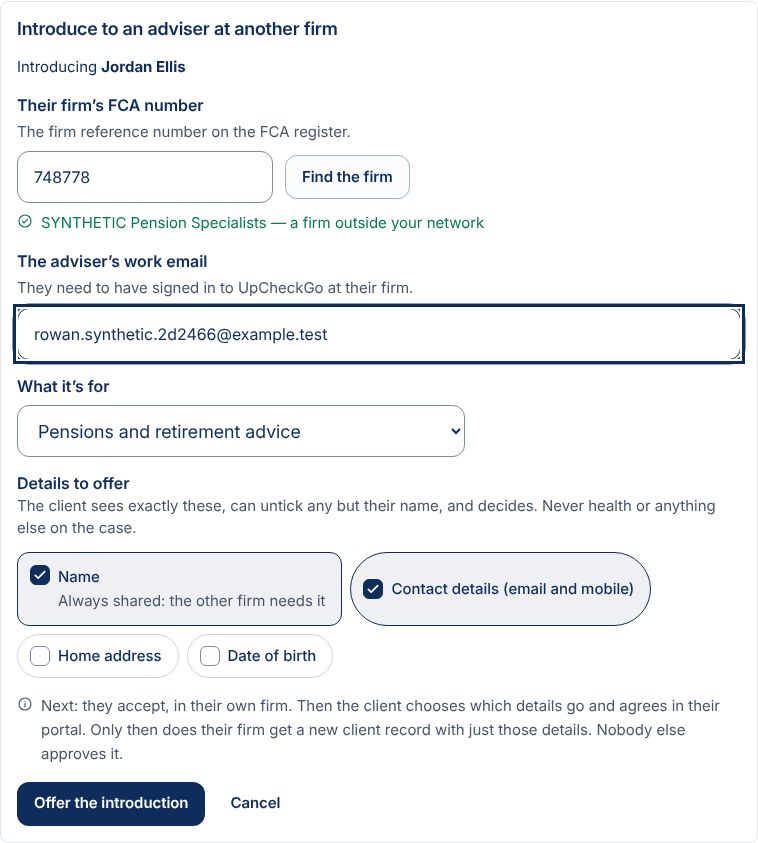
19 / 26
Introductions
Introduce a client to an adviser elsewhere. The client chooses which details go, in their own portal.
-
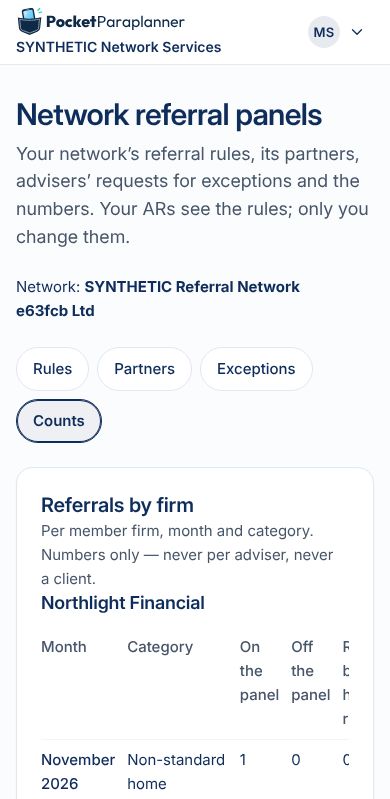
20 / 26
Networks and referral panels
A network sets referral rules and sees numbers for each firm, never client details.
-
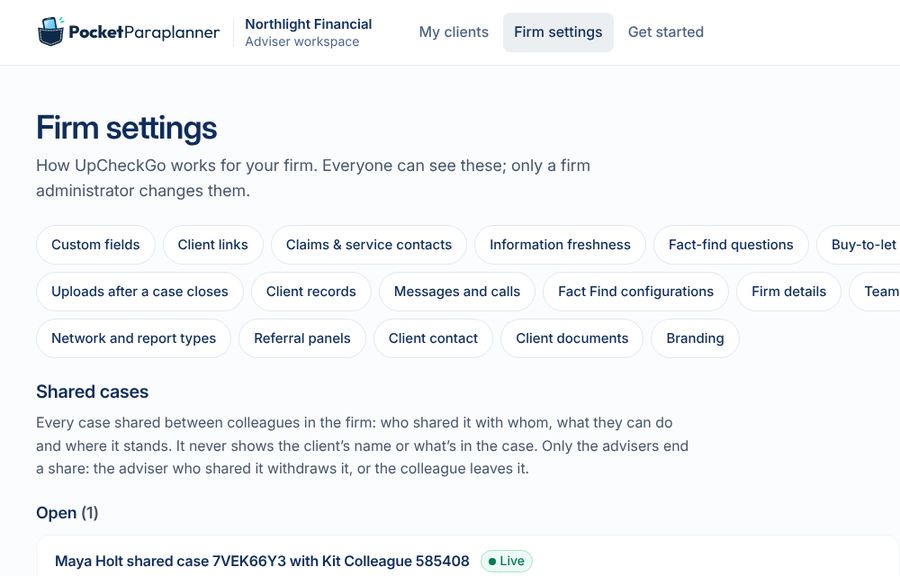
21 / 26
Shared cases
Every case shared between colleagues: with whom, what they can do, and when it ends.
-
22 / 26
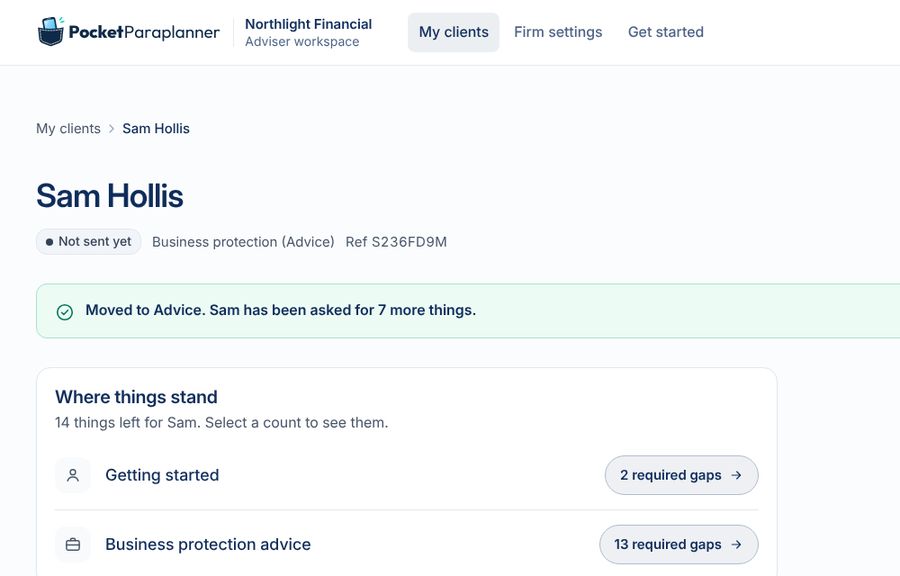
Moving a case to advice
When a case moves on, only the new questions are asked; confirmed answers are kept.
-
23 / 26
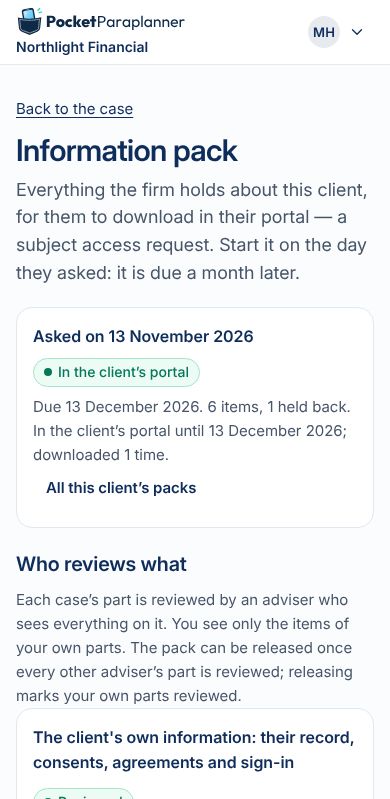
A client's information pack
A subject access request: everything the firm holds, gathered for the client to download, due a month later.
-
24 / 26
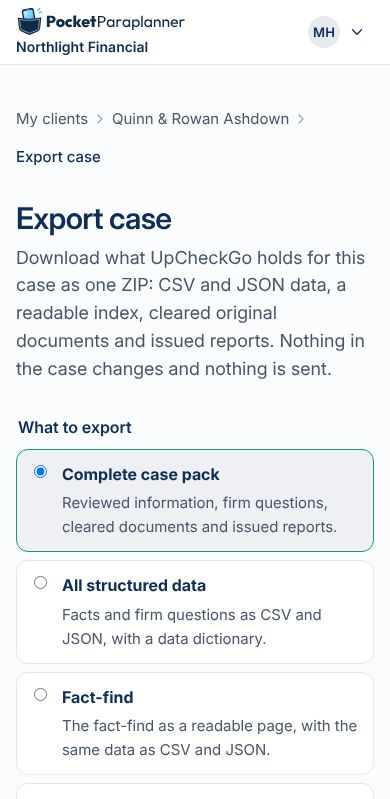
Exporting a case
Everything held about a case as one ZIP: data, a readable index, the documents that passed their safety checks, and issued reports. Nothing changes and nothing is sent.
-
25 / 26
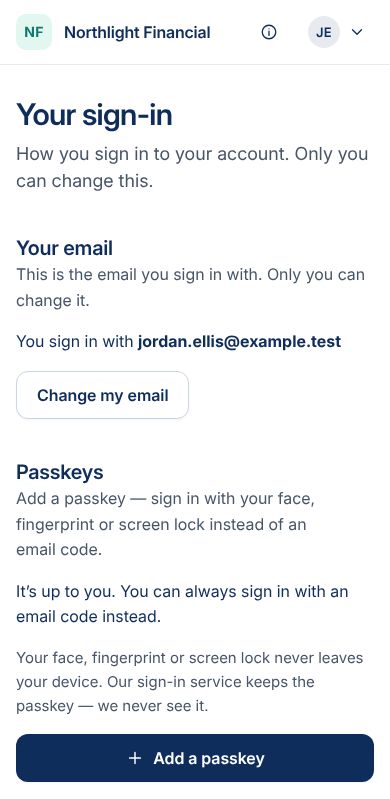
The client's own sign-in
Clients change their own email and add passkeys. The old address gets a notice.
-
26 / 26
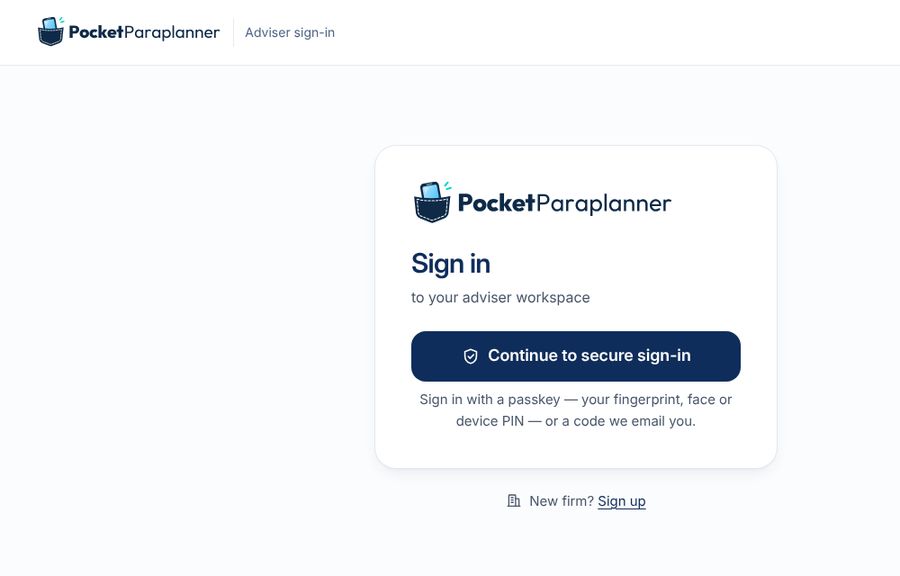
PocketParaplanner for advisers
Advisers see PocketParaplanner; clients see the firm's brand, powered by UpCheckGo. Everything you've seen runs on made-up data only.